引言
大家好!今天给大家带来一个超实用的技术教程组合拳——如何在阿里云ModelScope免费服务器上搭建文件上传服务,并通过ngrok实现内网穿透,让外网也能访问你的服务。全程保姆级教学,跟着操作就能成功!
一、领取ModelScope免费服务器
1. 什么是ModelScope Notebook?
ModelScope Notebook是阿里云提供的云端机器学习开发环境,支持Python编程,实名用户可获得免费算力额度,完美解决本地算力不足的问题。
2. 领取步骤
第一步:登录注册
访问 魔塔社区 注册账号并完成实名认证
第二步:进入Notebook
点击右上角「控制台」 选择「Notebook」进入管理页面
第三步:创建实例
点击「新建Notebook」
选择GPU环境(36小时免费额度)或CPU环境(长期免费使用)
等待实例启动(约1-2分钟)
二、搭建文件上传服务
1. 项目结构
如果选择CPU环境,若超过1小时无操作将触发自动关闭功能,重启后会清空/mnt/workspace之外的数据,所有为了持久化,将数据放在/mnt/workspace下。
首先创建项目目录结构:
mkdir -p /mnt/workspace/py_file/{templates,uploads,chunks}
cd py_file
2. 创建Flask服务端代码
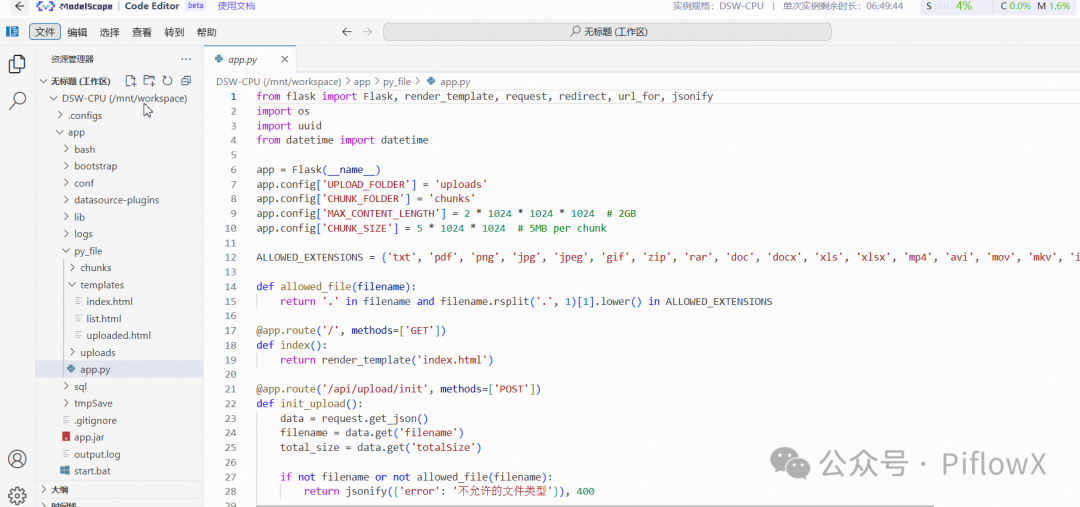
创建 app.py 文件:
from flask import Flask, render_template, request, redirect, url_for, jsonify
import os
import uuid
from datetime import datetime

app = Flask(__name__)
app.config['UPLOAD_FOLDER'] = 'uploads'
app.config['CHUNK_FOLDER'] = 'chunks'
app.config['MAX_CONTENT_LENGTH'] = 2 * 1024 * 1024 * 1024# 2GB
app.config['CHUNK_SIZE'] = 5 * 1024 * 1024# 5MB per chunk

ALLOWED_EXTENSIONS = {'txt', 'pdf', 'png', 'jpg', 'jpeg', 'gif', 'zip', 'rar',
                      'doc', 'docx', 'xls', 'xlsx', 'mp4', 'avi', 'mov', 'mkv'}

defallowed_file(filename):
    return'.'in filename and filename.rsplit('.', 1)[1].lower() in ALLOWED_EXTENSIONS

@app.route('/', methods=['GET'])
defindex():
    return render_template('index.html')

@app.route('/api/upload/init', methods=['POST'])
definit_upload():
    data = request.get_json()
    filename = data.get('filename')
    total_size = data.get('totalSize')

    ifnot filename ornot allowed_file(filename):
        return jsonify({'error': '不允许的文件类型'}), 400

    upload_id = str(uuid.uuid4())
    chunk_dir = os.path.join(app.config['CHUNK_FOLDER'], upload_id)
    os.makedirs(chunk_dir, exist_ok=True)

    return jsonify({
        'uploadId': upload_id,
        'chunkSize': app.config['CHUNK_SIZE'],
        'resumed': False
    })

@app.route('/api/upload/chunk', methods=['POST'])
defupload_chunk():
    upload_id = request.form.get('uploadId')
    chunk_index = int(request.form.get('chunkIndex'))
    file = request.files.get('file')

    ifnot upload_id ornot file:
        return jsonify({'error': '缺少参数'}), 400

    chunk_dir = os.path.join(app.config['CHUNK_FOLDER'], upload_id)
    chunk_path = os.path.join(chunk_dir, f'chunk_{chunk_index}')
    file.save(chunk_path)

    return jsonify({'chunkIndex': chunk_index, 'status': 'success'})

@app.route('/api/upload/complete', methods=['POST'])
defcomplete_upload():
    data = request.get_json()
    upload_id = data.get('uploadId')
    filename = data.get('filename')

    chunk_dir = os.path.join(app.config['CHUNK_FOLDER'], upload_id)
    timestamp = datetime.now().strftime('%Y%m%d_%H%M%S_')
    final_filename = timestamp + filename
    final_path = os.path.join(app.config['UPLOAD_FOLDER'], final_filename)

    withopen(final_path, 'wb') as final_file:
        chunk_files = sorted([f for f in os.listdir(chunk_dir) if f.startswith('chunk_')],
                           key=lambda x: int(x.split('_')[1]))
        for chunk_file in chunk_files:
            chunk_path = os.path.join(chunk_dir, chunk_file)
            withopen(chunk_path, 'rb') as cf:
                final_file.write(cf.read())

    import shutil
    shutil.rmtree(chunk_dir)

    return jsonify({
        'filename': filename,
        'savedName': final_filename,
        'size': os.path.getsize(final_path),
        'uploadTime': datetime.now().strftime('%Y-%m-%d %H:%M:%S')
    })

@app.route('/list')
deflist_files():
    files = []
    if os.path.exists(app.config['UPLOAD_FOLDER']):
        for filename in os.listdir(app.config['UPLOAD_FOLDER']):
            file_path = os.path.join(app.config['UPLOAD_FOLDER'], filename)
            if os.path.isfile(file_path):
                files.append({
                    'name': filename,
                    'size': os.path.getsize(file_path),
                    'mtime': datetime.fromtimestamp(os.path.getmtime(file_path)).strftime('%Y-%m-%d %H:%M:%S')
                })
    files.sort(key=lambda x: x['mtime'], reverse=True)
    return render_template('list.html', files=files)

if __name__ == '__main__':
    os.makedirs(app.config['UPLOAD_FOLDER'], exist_ok=True)
    os.makedirs(app.config['CHUNK_FOLDER'], exist_ok=True)
    app.run(debug=True, host='0.0.0.0', port=5000)
3. 创建前端页面
创建 templates/index.html:
<!DOCTYPE html>
<html lang="zh-CN">
<head>
    <meta charset="UTF-8">
    <title>文件上传</title>
    <style>
        body { font-family: -apple-system, BlinkMacSystemFont, 'Segoe UI', Roboto, sans-serif; padding: 20px; max-width: 600px; margin: 0 auto; }
        .upload-area { border: 2px dashed #ccc; border-radius: 10px; padding: 40px; text-align: center; cursor: pointer; }
        .upload-area:hover { border-color: #007bff; }
        #fileInput { display: none; }
        .progress-bar { width: 100%; height: 20px; background: #eee; border-radius: 10px; margin-top: 20px; }
        .progress { height: 100%; background: #007bff; border-radius: 10px; transition: width 0.3s; }
    </style>
</head>
<body>
    <h1>? 文件上传</h1>
    <div class="upload-area" id="uploadArea">
        <p>点击或拖拽文件到此处上传</p>
        <p style="color: #666; font-size: 14px;">支持大文件分片上传(最大2GB)</p>
    </div>
    <input type="file" id="fileInput">
    <div class="progress-bar" id="progressBar" style="display: none;">
        <div class="progress" id="progress"></div>
    </div>
    <p id="status"></p>

    <script>
        const uploadArea = document.getElementById('uploadArea');
        const fileInput = document.getElementById('fileInput');
        const progressBar = document.getElementById('progressBar');
        const progress = document.getElementById('progress');
        const status = document.getElementById('status');

        uploadArea.addEventListener('click', () => fileInput.click());
        uploadArea.addEventListener('dragover', (e) => e.preventDefault());
        uploadArea.addEventListener('drop', (e) => {
            e.preventDefault();
            const files = e.dataTransfer.files;
            if (files.length > 0) uploadFile(files[0]);
        });
        fileInput.addEventListener('change', (e) =>uploadFile(e.target.files[0]));

        asyncfunctionuploadFile(file) {
            if (!file) return;

            constCHUNK_SIZE = 5 * 1024 * 1024; // 5MB
            const totalChunks = Math.ceil(file.size / CHUNK_SIZE);
            let uploadedChunks = 0;

            progressBar.style.display = 'block';
            status.textContent = `初始化上传...`;

            const initResponse = awaitfetch('/api/upload/init', {
                method: 'POST',
                headers: { 'Content-Type': 'application/json' },
                body: JSON.stringify({ filename: file.name, totalSize: file.size })
            });
            const { uploadId, chunkSize } = await initResponse.json();

            for (let i = 0; i < totalChunks; i++) {
                const start = i * chunkSize;
                const end = Math.min(start + chunkSize, file.size);
                const chunk = file.slice(start, end);

                const formData = newFormData();
                formData.append('uploadId', uploadId);
                formData.append('chunkIndex', i);
                formData.append('totalChunks', totalChunks);
                formData.append('file', chunk);

                awaitfetch('/api/upload/chunk', { method: 'POST', body: formData });

                uploadedChunks++;
                progress.style.width = `${(uploadedChunks / totalChunks) * 100}%`;
                status.textContent = `上传中: ${Math.round((uploadedChunks / totalChunks) * 100)}%`;
            }

            const completeResponse = awaitfetch('/api/upload/complete', {
                method: 'POST',
                headers: { 'Content-Type': 'application/json' },
                body: JSON.stringify({ uploadId, filename: file.name })
            });
            const result = await completeResponse.json();

            status.textContent = `✅ 上传成功!文件名: ${result.filename}, 大小: ${formatSize(result.size)}`;
        }

        functionformatSize(bytes) {
            if (bytes < 1024) return bytes + ' B';
            if (bytes < 1024 * 1024) return (bytes / 1024).toFixed(2) + ' KB';
            if (bytes < 1024 * 1024 * 1024) return (bytes / (1024 * 1024)).toFixed(2) + ' MB';
            return (bytes / (1024 * 1024 * 1024)).toFixed(2) + ' GB';
        }
    </script>
</body>
</html>
4. 创建文件列表页面
创建 templates/list.html:
<!DOCTYPE html>
<html lang="zh-CN">
<head>
    <meta charset="UTF-8">
    <meta name="viewport" content="width=device-width, initial-scale=1.0">
    <title>已上传文件列表</title>
    <style>
        * {
            margin: 0;
            padding: 0;
            box-sizing: border-box;
        }
        body {
            font-family: 'Segoe UI', Tahoma, Geneva, Verdana, sans-serif;
            background: linear-gradient(135deg, #667eea0%, #764ba2100%);
            min-height: 100vh;
            padding: 40px20px;
        }
        .container {
            background: white;
            border-radius: 20px;
            padding: 30px;
            box-shadow: 020px60pxrgba(0, 0, 0, 0.15);
            max-width: 800px;
            margin: 0 auto;
        }
        .header {
            display: flex;
            justify-content: space-between;
            align-items: center;
            margin-bottom: 30px;
        }
        h1 {
            color: #333;
            font-size: 28px;
            display: flex;
            align-items: center;
            gap: 10px;
        }
        .btn {
            padding: 10px25px;
            border: none;
            border-radius: 8px;
            font-size: 15px;
            font-weight: 600;
            cursor: pointer;
            transition: all 0.3s ease;
            text-decoration: none;
            display: inline-flex;
            align-items: center;
            gap: 8px;
        }
        .btn-primary {
            background: linear-gradient(135deg, #667eea0%, #764ba2100%);
            color: white;
        }
        .btn-primary:hover {
            transform: translateY(-2px);
            box-shadow: 05px20pxrgba(102, 126, 234, 0.4);
        }
        .btn-danger {
            background: #ff4757;
            color: white;
            padding: 10px20px;
            font-size: 15px;
        }
        .btn-danger:hover {
            background: #ff3838;
        }
        .file-list {
            list-style: none;
        }
        .file-item {
            display: flex;
            align-items: center;
            padding: 15px20px;
            border: 1px solid #eee;
            border-radius: 10px;
            margin-bottom: 12px;
            transition: all 0.3s ease;
        }
        .file-item:hover {
            border-color: #667eea;
            background: #f8f9ff;
        }
        .file-icon {
            font-size: 36px;
            margin-right: 15px;
        }
        .file-details {
            flex: 1;
        }
        .file-name {
            font-weight: 600;
            color: #333;
            margin-bottom: 5px;
        }
        .file-meta {
            font-size: 13px;
            color: #999;
        }
        .file-actions {
            display: flex;
            gap: 10px;
        }
        .no-files {
            text-align: center;
            padding: 60px20px;
            color: #999;
        }
        .no-files-icon {
            font-size: 60px;
            margin-bottom: 20px;
        }
        .no-filesp {
            font-size: 16px;
        }
    </style>
</head>
<body>
    <div class="container">
        <div class="header">
            <h1>? 已上传文件列表</h1>
            <a href="/" class="btn btn-primary">? 上传新文件</a>
        </div>

        {% if files %}
            <ul class="file-list">
                {% for file in files %}
                    <li class="file-item">
                        <div class="file-icon">{{ file.icon }}</div>
                        <div class="file-details">
                            <div class="file-name">{{ file.name }}</div>
                            <div class="file-meta">{{ file.size }} | {{ file.modified }}</div>
                        </div>
                        <div class="file-actions">
                            <a href="/download/{{ file.name }}" class="btn btn-primary">下载</a>
                            <form action="/delete/{{ file.name }}" method="post" style="display: inline;">
                                <button type="submit" class="btn btn-danger" onclick="return confirm('确定要删除此文件吗?')">删除</button>
                            </form>
                        </div>
                    </li>
                {% endfor %}
            </ul>
        {% else %}
            <div class="no-files">
                <div class="no-files-icon">?</div>
                <p>暂无上传的文件</p>
            </div>
        {% endif %}
    </div>
</body>
</html>
5. 创建上传成功页面
创建 templates/uploaded.html:
<!DOCTYPE html>
<html lang="zh-CN">
<head>
    <meta charset="UTF-8">
    <meta name="viewport" content="width=device-width, initial-scale=1.0">
    <title>上传成功</title>
    <style>
        * {
            margin: 0;
            padding: 0;
            box-sizing: border-box;
        }
        body {
            font-family: 'Segoe UI', Tahoma, Geneva, Verdana, sans-serif;
            background: linear-gradient(135deg, #667eea0%, #764ba2100%);
            min-height: 100vh;
            display: flex;
            justify-content: center;
            align-items: center;
            padding: 20px;
        }
        .container {
            background: white;
            border-radius: 20px;
            padding: 40px;
            text-align: center;
            box-shadow: 020px60pxrgba(0, 0, 0, 0.15);
            max-width: 450px;
            width: 100%;
        }
        .success-icon {
            font-size: 80px;
            margin-bottom: 20px;
            animation: bounce 0.6s ease;
        }
        @keyframes bounce {
            0%, 100% { transform: scale(1); }
            50% { transform: scale(1.1); }
        }
        h1 {
            color: #333;
            margin-bottom: 15px;
            font-size: 28px;
        }
        p {
            color: #666;
            margin-bottom: 30px;
            font-size: 16px;
        }
        .file-info {
            background: #f8f9fa;
            padding: 20px;
            border-radius: 12px;
            margin-bottom: 30px;
            text-align: left;
        }
        .file-infodiv {
            margin-bottom: 10px;
        }
        .file-infodiv:last-child {
            margin-bottom: 0;
        }
        .file-infostrong {
            color: #333;
            min-width: 100px;
            display: inline-block;
        }
        .btn {
            padding: 12px30px;
            border: none;
            border-radius: 8px;
            font-size: 16px;
            font-weight: 600;
            cursor: pointer;
            transition: all 0.3s ease;
            text-decoration: none;
            display: inline-block;
        }
        .btn-primary {
            background: linear-gradient(135deg, #667eea0%, #764ba2100%);
            color: white;
        }
        .btn-primary:hover {
            transform: translateY(-2px);
            box-shadow: 05px20pxrgba(102, 126, 234, 0.4);
        }
        .btn-secondary {
            background: #f0f0f0;
            color: #666;
            margin-left: 10px;
        }
        .btn-secondary:hover {
            background: #e0e0e0;
        }
    </style>
</head>
<body>
    <div class="container">
        <div class="success-icon">✅</div>
        <h1>上传成功!</h1>
        <p>您的文件已成功上传到服务器</p>

        <div class="file-info">
            <div><strong>文件名:</strong>{{ file_info.filename }}</div>
            <div><strong>文件大小:</strong>{{ file_info.size|format_size }}</div>
            <div><strong>上传时间:</strong>{{ file_info.upload_time }}</div>
        </div>

        <a href="/" class="btn btn-primary">继续上传</a>
        <a href="/list" class="btn btn-secondary">查看文件列表</a>
    </div>
</body>
</html>
6. 安装依赖并启动服务
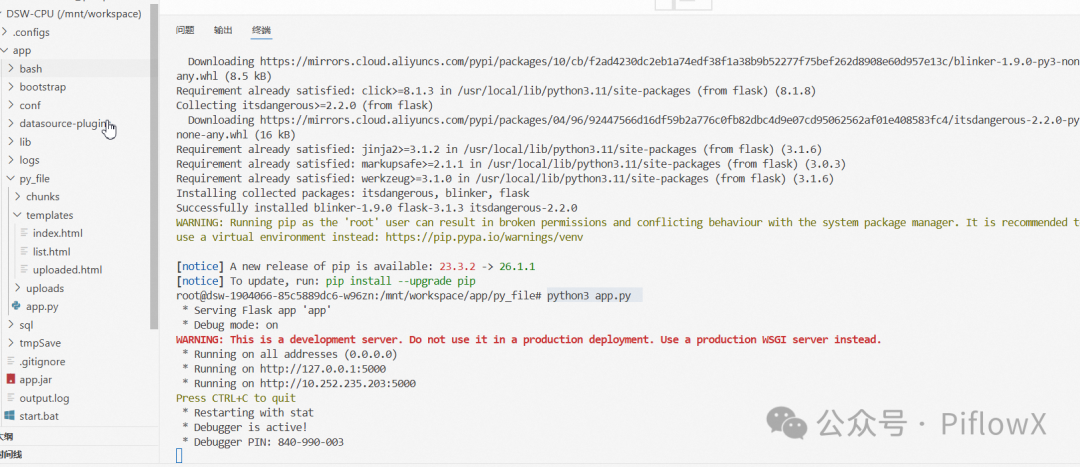
# 安装Flask
pip install flask

# 启动服务
python3 app.py
三、什么是ngrok?
ngrok简介
ngrok是一个内网穿透工具,可以将你的本地服务器暴露到公网,让外网用户也能访问。它的核心功能:
? 将本地端口映射到公网URL ? 支持HTTPS加密连接 ? 提供请求日志和流量统计 ? 支持多种协议(HTTP/HTTPS/TCP)
为什么需要ngrok?
开发测试:让远程同事测试你的本地服务 演示展示:向客户展示本地开发的应用 调试Webhook:接收第三方服务的回调
四、使用ngrok开启代理
1. 安装ngrok
方法一:下载安装(推荐)
# 下载ngrok
wget https://bin.ngrok.com/c/bNyj1mQVY4c/ngrok-v3-stable-linux-amd64.tgz

# 解压
tar -xzf ngrok-v3-stable-linux-amd64.tgz

# 移动到系统目录
sudo mv ngrok /usr/local/bin/
方法二:使用npm安装
npm install -g ngrok
2. 注册并获取Auth Token
访问 ngrok官网 注册账号 登录后在「Your Authtoken」页面复制你的token
3. 配置Auth Token
ngrok config add-authtoken YOUR_AUTH_TOKEN
4. 启动ngrok代理
# 将本地5000端口映射到公网
ngrok http 5000
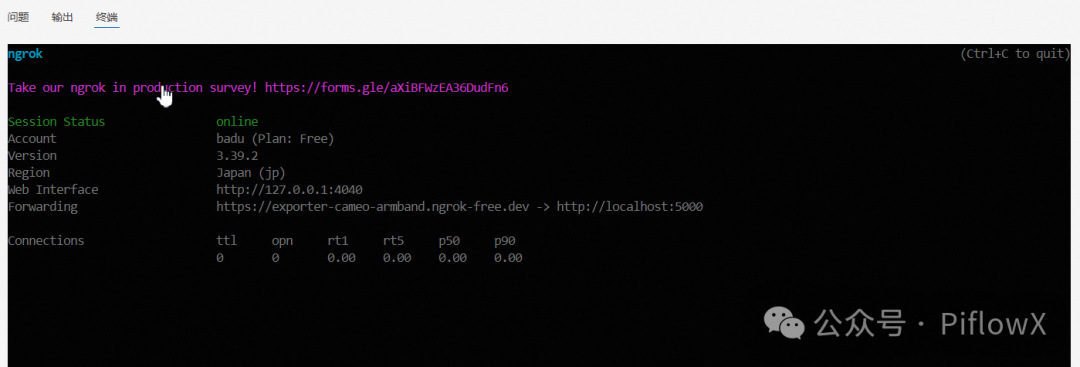
执行后会看到类似如下输出:
Session Status                online
Account                       YourName (Plan: Free)
Version                       3.1.0
Region                        Asia Pacific (ap)
Latency                       12ms
Web Interface                 http://127.0.0.1:4040
Forwarding                    https://abc123.ngrok.io -> http://localhost:5000
Forwarding                    http://abc123.ngrok.io -> http://localhost:5000
✨ 重点:
https://abc123.ngrok.io就是你的公网访问地址!
五、上传文件测试
1. 访问上传页面
打开浏览器,访问ngrok提供的公网URL(如 https://abc123.ngrok.io)
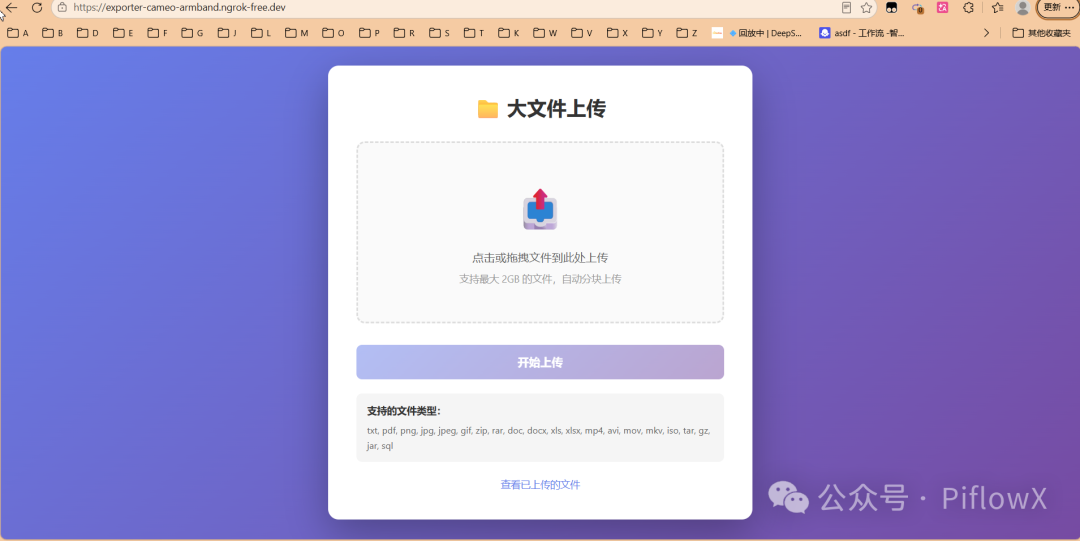
2. 上传文件
点击上传区域或拖拽文件到页面 等待上传完成(大文件会自动分片上传,支持断点续传) 查看上传结果
3. 查看已上传文件
访问 https://abc123.ngrok.io/list 查看所有已上传的文件列表
六、常见问题排查
Q1: ngrok启动失败?
解决方案:
检查网络连接是否正常 确保Auth Token配置正确 尝试更换端口: ngrok http 8080
Q2: 文件上传失败?
解决方案:
检查文件大小是否超过2GB限制 确保uploads和chunks目录有写入权限 查看Flask控制台错误日志
Q3: ngrok URL失效?
解决方案:
免费版ngrok每次启动会生成新URL 升级到付费版可获得固定域名 保持ngrok终端窗口打开
总结
今天我们完成了一个完整的技术链路:
? 领取免费服务器:ModelScope Notebook提供免费GPU算力 ? 搭建上传服务:使用Flask实现大文件分片上传 ? 内网穿透:通过ngrok将本地服务暴露到公网 ? 测试上传:成功上传文件到服务器
这套组合拳可以应用在很多场景:
临时文件分享服务 开发测试环境 个人项目展示

 支付宝微信扫一扫,打赏作者吧~
本文链接:https://kinber.cn/post/6587.html 转载需授权!
推荐本站淘宝优惠价购买喜欢的宝贝:
 您阅读本篇文章共花了: